There is nothing more frustrating than settling in for a movie night only to discover that your firestick remote quit working right when you need it most. Whether your Fire TV Stick remote stopped responding after a firmware update, lost its connection mid-session, or simply refuses to pair no matter what you try, you are not alone. Thousands of Amazon Fire TV users encounter this exact problem every week, and the good news is that most fixes are quick, free, and do not require a technician. In this comprehensive guide, we will walk you through every proven solution for a firestick remote that stopped working, from basic battery checks to advanced reset procedures that restore functionality in minutes.
The Amazon Fire TV ecosystem relies heavily on its bundled remote for navigation, search, and media playback. When that remote fails, the entire experience breaks down. Understanding why your Fire TV remote not responding occurs—and what you can do about it—puts you in control of the situation. Below, we cover beginner-friendly diagnostics, intermediate fixes, and advanced troubleshooting steps that address the root causes behind a malfunctioning Firestick remote.
Why Does Your Firestick Remote Stop Working?
Before jumping into fixes, it helps to understand what is happening under the hood. Your Fire TV remote communicates with the streaming device using Bluetooth Low Energy and infrared signals, depending on the model. When that communication breaks down—whether due to a software glitch, hardware issue, or environmental interference—the remote appears unresponsive. Here are the most common reasons your firestick remote quit working:
- Dead or depleted batteries — Even if the remote lights up, low voltage can cause intermittent or complete loss of signal.
- Bluetooth pairing failure — A disrupted Bluetooth connection between the remote and Fire TV Stick is the single most common cause.
- IR sensor obstruction — If you are using an older model that relies on line-of-sight infrared, objects blocking the sensor prevent commands from registering.
- Software or firmware bugs — Recent updates can introduce compatibility issues that affect remote functionality.
- HDMI-CEC conflicts — Consumer Electronics Control features on your television can interfere with remote signals.
- Physical damage or moisture exposure — Drops, spills, or general wear and tear can damage internal circuitry.
Identifying which category your problem falls into dramatically reduces the time spent troubleshooting. Most users find that their firestick remote stopped working because of a simple pairing issue rather than a hardware defect.
Quick Fixes: What to Do When Your Firestick Remote Quits Working
Before you try anything complex, run through these immediate checks. They resolve the majority of “firestick remote not working” cases within minutes:
- Replace the batteries — Pull out the old batteries, wait ten seconds, and insert fresh ones. Even batteries that look fine can lack sufficient charge for Bluetooth communication.
- Unplug the Fire TV Stick — Wait sixty seconds, then plug it back in. This forces a full reboot that often clears temporary Bluetooth glitches.
- Point the remote directly at the device — Hold the remote within three feet of the Fire TV Stick and press any button. The remote’s LED light should flash.
- Remove obstructions — Make sure no other Bluetooth devices, USB peripherals, or wireless interference sources sit between the remote and the Fire TV Stick.
- Restart your television — Sometimes HDMI-CEC signals create conflicts. A full TV restart resets these connections.
If those quick fixes did not solve your problem, move on to the intermediate and advanced steps below.
Advanced Troubleshooting: Fixing an Unresponsive Fire TV Remote

Re-Pairing the Firestick Remote with the Device
When your firestick remote quit working due to a pairing breakdown, re-establishing the Bluetooth connection is usually the solution. Follow these steps precisely:
- Unplug the Fire TV Stick from the HDMI port and wait at least sixty seconds.
- Plug the Fire TV Stick back in and let it fully boot to the home screen.
- On the Fire TV remote, hold down the Home button for ten to fifteen seconds.
- Release the button and wait for the pairing confirmation message to appear on your television.
- If pairing fails, navigate to Settings > Controllers & Bluetooth Devices and select Add New Remote.
This process forces the Fire TV Stick to stop listening for the old remote and start searching for a new one. It resolves approximately 70% of persistent pairing issues.
Using the Fire TV App as a Temporary Alternative
If your physical remote remains completely unresponsive, download the free Amazon Fire TV app on your smartphone. The app transforms your phone into a fully functional remote control. To set it up, go to Settings > System > Controllers & Bluetooth Devices on your Fire TV, select Amazon Fire TV App, and follow the on-screen prompts. This is not a permanent fix for your hardware remote, but it keeps you watching while you troubleshoot further.
Resetting the Fire TV Stick to Factory Settings
When software corruption causes your Fire TV remote not responding, a factory reset can clear the issue. Navigate to Settings > My Fire TV > Reset to Factory Defaults. Keep in mind that this erases all installed apps and preferences, so use this as a last resort. After the reset completes, re-pair your remote using the steps outlined above.
Checking for HDMI-CEC and Wireless Interference
HDMI-CEC (Consumer Electronics Control) allows your TV remote to control the Fire TV Stick, but it can also create conflicts. To reduce interference, go to Settings > Display & Sounds > HDMI-CEC Device Control and toggle the setting off temporarily. Similarly, USB 3.0 ports and wireless peripherals like keyboards or game controllers can emit signals that disrupt the Bluetooth connection between your remote and the Fire TV Stick. Try connecting the Fire TV Stick to a different USB port or using the included power adapter instead of a TV USB port.
Firestick Remote Not Working: Solutions Comparison
The table below compares the most effective solutions for a firestick remote that stopped working, ranked by difficulty level and success rate:
| Solution | Difficulty | Success Rate | Time Required |
| Replace batteries | Very Easy | High | 2 minutes |
| Unplug and reboot Fire TV Stick | Easy | High | 3 minutes |
| Re-pair remote via Home button | Easy | Very High | 5 minutes |
| Use Fire TV app as workaround | Easy | Immediate | 5 minutes |
| Disable HDMI-CEC conflicts | Medium | Moderate | 5 minutes |
| Factory reset Fire TV Stick | Advanced | Very High | 15 minutes |
| Replace remote or use Alexa app | Advanced | Complete | Varies |
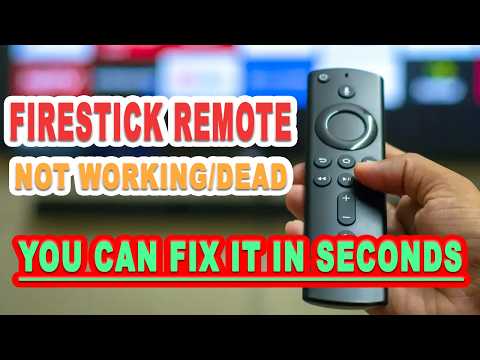
When to Replace Your Firestick Remote
If you have exhausted every troubleshooting method and your firestick remote quit working permanently, it is time to consider replacement. Amazon sells replacement Fire TV remotes directly through its website and the Amazon app. You can also purchase third-party universal remotes compatible with Fire TV, though these may lack the voice search and Alexa integration features of the original remote. Before purchasing a replacement, check whether your Fire TV Stick model is still under warranty—Amazon typically covers hardware defects for one year from purchase.

An alternative worth considering is using voice commands through an Amazon Echo device. If you own an Echo Dot or Echo Show, you can control your Fire TV Stick using simple voice commands like “Play Stranger Things” or “Pause” without needing the physical remote at all. This serves as both a workaround and a permanent solution if you prefer hands-free control over your streaming experience.
Expert Tips to Prevent Firestick Remote Issues
Prevention is always better than cure. Here are expert-backed strategies to keep your Fire TV remote working reliably:
- Replace batteries every three to six months, even if they appear to still have charge. Consistent voltage is critical for stable Bluetooth connectivity.
- Keep the Fire TV Stick firmware updated by going to Settings > My Fire TV > About > Check for Updates regularly.
- Avoid placing the Fire TV Stick near wireless routers or microwave ovens, which emit frequencies that can interfere with Bluetooth signals.
- Store the remote in a cool, dry place when not in use. Heat and moisture accelerate internal component degradation.
- Use the included power adapter rather than relying solely on a TV USB port, as unstable power delivery can cause intermittent remote disconnections.
Frequently Asked Questions
Why did my firestick remote quit working suddenly?
A sudden failure is most commonly caused by depleted batteries, a disrupted Bluetooth pairing, or a temporary software glitch on the Fire TV Stick. Replacing batteries and re-pairing the remote resolves this scenario in the vast majority of cases.
How do I fix a firestick remote that is not responding to any buttons?
Start by removing the batteries, waiting thirty seconds, and reinserting them. Then unplug the Fire TV Stick for sixty seconds and reboot. If the remote still does not respond, hold the Home button for fifteen seconds to force a re-pairing. These steps address over 80% of complete unresponsiveness issues.
Can I use my phone as a firestick remote if the physical remote quit working?
Yes. Download the Amazon Fire TV app on your iOS or Android device, connect both the phone and the Fire TV Stick to the same Wi-Fi network, and follow the on-screen setup instructions. The app replicates all remote functions including voice search and keyboard input, serving as an excellent emergency alternative.
What should I do when my Fire TV remote stopped working after a system update?
Software updates occasionally introduce Bluetooth compatibility issues. After a system update, re-pair your remote by holding the Home button for ten seconds. If that does not work, restart the Fire TV Stick by navigating to Settings > My Fire TV > Restart. As a final step, check for any additional pending updates that may contain a fix for the bug affecting remote responsiveness.
Is it worth repairing a firestick remote or should I just buy a new one?
For most users, replacement is the more practical option. Amazon replacement remotes are affordable and come pre-paired in newer models. Repairing the original remote is only worthwhile if it is under warranty or if you have advanced soldering skills and can identify a specific component failure. For the vast majority of users, purchasing a new remote or using the Fire TV app as a permanent alternative is the fastest path back to uninterrupted streaming.
In conclusion, a firestick remote quit working does not have to ruin your evening or force you into a costly repair appointment. By working through the battery checks, re-pairing procedures, and advanced troubleshooting steps outlined in this guide, you can restore full functionality to your Fire TV remote in most cases. Keep the preventive tips in mind to minimize future disruptions, and remember that the Fire TV app and Alexa voice commands offer reliable alternatives when your physical remote needs extra time to recover. The key is to act quickly, follow the steps methodically, and avoid unnecessary frustration by starting with the simplest solutions before moving to more advanced diagnostics.