
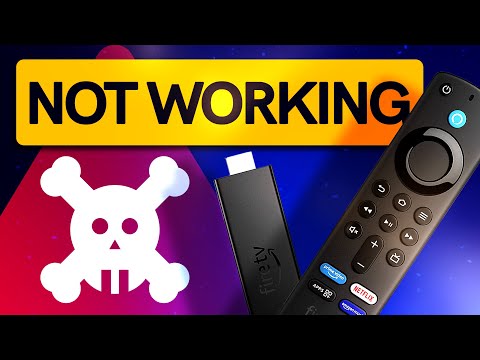
If you’re staring at your TV screen with a completely unresponsive Firestick remote not working, you know how frustrating it can be—especially when you just want to kick back and enjoy your favorite streaming content. The good news is that this is one of the most common issues Fire TV Stick users encounter, and in the vast majority of cases, it’s something you can fix at home without calling support or buying a replacement. Whether your Alexa remote isn’t pairing, the buttons feel stuck, the infrared sensor isn’t detecting input, or the remote simply won’t wake the device from standby, this guide covers every proven fix, diagnostic step, and expert tip to get your Firestick remote back in action fast.
Why Does Your Firestick Remote Stop Working?
Before jumping into troubleshooting steps, understanding the root cause saves you significant time. Fire TV remotes can fail for a variety of reasons, ranging from simple power issues to more complex Bluetooth or hardware problems. The two main remote types—infrared (IR) remotes and Bluetooth Low Energy (BLE) remotes—each have distinct failure modes that influence which fixes will work best for your situation.
IR vs. Bluetooth Remotes: Key Differences
Older Firestick models and some bundled remotes use infrared signals, meaning the remote must have a direct line of sight to the Fire TV device. Newer Alexa Voice Remotes use Bluetooth, allowing them to work from any angle within roughly 30 feet. When a Bluetooth remote disconnects, it often appears dead even though the batteries are fine, while IR remotes simply stop transmitting when the emitter is blocked or damaged.
Step-by-Step Fixes for Firestick Remote Not Working
Follow these solutions in order, starting with the simplest and most common fixes before moving to advanced troubleshooting.
1. Check the Batteries First
This sounds obvious, but weak or improperly installed batteries cause the majority of Firestick remote failures. Remove the battery cover, check the polarity markings, and insert fresh AAA batteries. If your remote uses a USB power cable as a backup power source, make sure that cable is securely connected to an active USB port on your TV or Fire TV device.
2. Restart Your Fire TV Stick
A soft reset clears temporary software glitches that can prevent your remote from communicating with the device. Unplug the Firestick from the HDMI port, wait 30 seconds, then plug it back in. Once the home screen loads, point the remote at the device and press the Home button to re-establish the connection.
3. Re-Pair the Remote via Bluetooth
If your Alexa remote won’t connect, go to Settings > Controllers & Bluetooth Devices > Amazon Fire TV Remotes on your Fire TV interface, then select Add New Remote. Follow the on-screen pairing instructions. If the Fire TV interface itself is inaccessible, hold the Home button on the remote for 10 seconds to force a Bluetooth re-pairing attempt.
4. Remove Obstacles and Interference Sources
Bluetooth signals can be disrupted by microwave ovens, wireless routers, USB 3.0 ports, and even neighboring Fire TV devices. Move these potential sources of interference away from your Firestick, and make sure nothing is blocking the remote’s infrared emitter or Bluetooth antenna.
5. Update the Fire TV Software
Outdated firmware can introduce compatibility bugs with your remote. Navigate to Settings > My Fire TV > About > Check for Updates. Install any available system updates and allow the device to restart fully before testing your remote again.
6. Perform a Factory Reset
As a last resort for software-related issues, go to Settings > My Fire TV > Reset to Factory Defaults. Note that this erases all installed apps, logins, and settings, so only use this option when other fixes have failed.
Troubleshooting Firestick Remote Blinking but Not Working
A blinking light on your Firestick remote typically indicates a pairing failure, low battery, or signal interference issue. If the remote blinks rapidly when you press any button, the Bluetooth connection has been lost. Follow the re-pairing steps above, and if the blinking persists, try replacing the batteries with high-quality alkaline cells from a reputable brand. Avoid cheap generic batteries, as they often deliver inconsistent voltage that Bluetooth peripherals struggle to handle.
Firestick Remote Not Working After Setup: Common Culprits
Sometimes a Firestick remote works perfectly during initial setup but starts malfunctioning days or weeks later. This pattern usually points to one of three issues:
- Battery drain over time: Alexa remotes with voice capabilities consume more power than basic remotes, especially if the microphone is accidentally activated frequently.
- Bluetooth memory overflow: Fire TV devices can only remember a limited number of paired remotes. Too many nearby Bluetooth devices can confuse the pairing list.
- HDMI-CEC conflicts: Consumer Electronics Control settings on your TV can sometimes interfere with remote signal interpretation, causing inputs to appear unresponsive.
Firestick Remote vs. Fire TV App: Quick Comparison
When your physical remote is dead, the Fire TV mobile app on your smartphone serves as an excellent temporary workaround. Here’s how the two compare when you’re dealing with a non-functional physical remote.
| Feature | Physical Firestick Remote | Fire TV App |
| Connection Type | Bluetooth / IR | Wi-Fi |
| Voice Control | Built-in Alexa microphone | Phone microphone |
| Setup Required | Bluetooth pairing | Same Wi-Fi network as Fire TV |
| Latency | Near-instant | Slight delay |
| Battery Life | 2–3 months (AAA batteries) | Uses phone battery |
| Best For | Daily primary use | Emergency backup or text input |
Using the Fire TV app as a workaround lets you navigate menus, launch apps, and even type search queries using your phone’s keyboard—something the physical remote struggles with for longer search terms.
When Should You Replace Your Firestick Remote?
Not every remote issue is fixable. If you’ve exhausted every software and battery solution and the remote still doesn’t respond, it’s time to consider replacement. Physical damage—such as a cracked circuit board, water-damaged contacts, or a broken infrared LED—cannot be repaired at home. Amazon sells replacement Alexa Voice Remotes directly through its store for around $20–$30, and they pair automatically with your Fire TV device if you’re logged into the same Amazon account.
You can also use the Fire TV app as a permanent daily driver if you prefer, though most users find that a physical remote offers a much better experience for casual browsing and quick navigation.
Expert Tips to Prevent Remote Issues Going Forward
- Keep spare batteries on hand. Swapping in fresh AAA batteries at the first sign of sluggish response prevents complete failure.
- Avoid placing your Fire TV Stick behind a TV with metal shielding. Metal TV bezels can block Bluetooth signals and weaken remote performance.
- Restart your Firestick monthly. Regular reboots clear cached data and prevent the small software glitches that lead to remote disconnections.
- Use a USB power adapter. Plugging your Firestick into a wall outlet rather than relying on your TV’s USB port ensures stable power delivery, which keeps the Bluetooth radio functioning reliably.
- Keep your Fire TV software updated. Amazon regularly patches Bluetooth connectivity bugs in firmware updates.
Frequently Asked Questions
Why is my Firestick remote not working even with new batteries?
Even with fresh batteries, your remote may fail to connect if the Bluetooth pairing has been lost. Navigate to Settings > Controllers & Bluetooth Devices > Amazon Fire TV Remotes and select Add New Remote. If the Fire TV menu is inaccessible, unplug the Firestick for 60 seconds, reconnect it, and hold the Home button on the remote for 10 seconds to force a re-pairing attempt.
Can I use my phone as a Firestick remote permanently?
Yes, the Fire TV app works as a permanent alternative to a physical remote, but it requires your phone and Fire TV Stick to be on the same Wi-Fi network. The app also lacks the tactile feedback of a physical remote and introduces slight input latency, making it better suited as a backup than a daily driver.
What does it mean when my Firestick remote light blinks but nothing happens?
A blinking light indicates the remote is attempting to pair but failing to establish a connection. This is most commonly caused by interference from nearby Bluetooth devices, weak batteries, or a Fire TV unit that has reached its pairing limit. Remove other Bluetooth peripherals from the area, replace the batteries, and try re-pairing.
How do I reset my Firestick remote without the Fire TV interface?
Unplug your Firestick from power, wait 60 seconds, and plug it back in. Once the home screen appears, hold the Home button on the remote for 10 seconds. This forces the Fire TV to search for and reconnect to any previously paired remotes without requiring you to navigate the settings menu.
Is it better to buy a new Firestick remote or just use the app?
A new Firestick remote costs $20–$30 and provides a superior experience with tactile buttons, built-in voice control, and zero input latency. The app is free and works well as a temporary fix or secondary input method, but most users prefer a dedicated remote for daily streaming.
Can a USB HDMI extender cable cause my Firestick remote to stop working?
Yes. Cheap or poorly shielded HDMI extender cables can weaken Bluetooth signals between your remote and the Fire TV Stick. If you use an extender, try disconnecting it temporarily to see if the remote starts working again. If it does, invest in a high-quality, shielded extender cable designed for 4K bandwidth.
Conclusion
A Firestick remote not working is almost never a permanent problem—most cases resolve quickly with the right troubleshooting approach. Start with the basics: fresh batteries, a physical restart, and re-pairing via Bluetooth. If those don’t work, check for interference, update your firmware, and perform a factory reset as a last resort. For users facing persistent hardware failures, a replacement remote from Amazon is affordable and pairs seamlessly. Keep this guide bookmarked for the next time your remote goes silent, and you’ll never be stuck without a way to navigate your Fire TV again.